
Before you start
- TravAI installed, your access configured and the Travian session open.
- Existing farm lists that you can access in the game. TravAI does not create new farming targets.
- The relevant farm-list pages opened in Travian so the bot can read their names.
These instructions use the English bot interface. Screens show sample settings; they are not live game sessions.
Load your existing lists
Open the Farm List page in Travian, then open the TravAI window. For several villages, visit the relevant farm-list pages before configuring their lists.
Under General Settings, expand Start Raid List. Check that the expected list names appear in Individual Lists.
Current bot interface
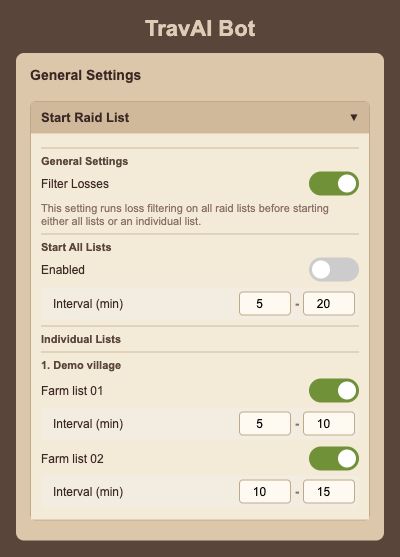
Rendered from the English interface with sample settings. This is not a live game session.
Open the full-size screenChoose individual lists or all lists
For a selection of lists, leave Enabled under Start All Lists off and enable the individual list names you want to use.
For an all-list routine, enable Start All Lists and set its shared interval. Check the list selections against the routine you intend to run.
Set interval ranges
Use the minimum and maximum interval fields for each enabled list, or the shared fields under Start All Lists. The current interface accepts values from 1 to 60 minutes; keep the minimum no greater than the maximum.
For example, one list can use 5–10 minutes and another 10–15 minutes. These are sample settings, not a recommended schedule for every account.
Choose whether to filter losses
Enable Filter Losses if you want the loss-filtering step before sending. This is a shared setting: the current interface applies it across farm lists before starting all lists or an individual list.
Choose the setting to suit your lists and continue to review your game reports.
Save and run the routine
Press Save after selecting lists and intervals. When ready, press Start and leave your computer, browser and game session open.
Check the recent action history and the lists in Travian. If you rename or replace a list in the game, revisit its page and check its selection in TravAI again.
Questions and troubleshooting
No lists appear in the bot.
Open the relevant Farm List page in the game, then reopen TravAI. Make sure the lists already exist and are accessible for the village you are configuring.
Can each list use a different interval?
Yes. Enable the individual lists you want and set the minimum/maximum fields displayed under each one.
Does Save start farming?
Save stores your configuration. Start is the control that starts the bot; while running, that control becomes Stop.